

Recharge and Code Redemption for Tenant Admins
Overview
| Item | Details |
|---|---|
| Applicable role | Tenant Admin |
| Last updated | 2026-06-01 |
In gahorouter, the quota for all API calls comes from the organization balance pool (tenant balance pool). As a tenant admin, you can top up credits to the organization balance pool in the following two ways:
| Method | Scenario | Crediting |
|---|---|---|
| Online recharge | You want to pay online via Alipay, WeChat, or Stripe for instant use | Automatically credited after successful payment |
| Redemption code | You received a redemption code from a system admin (e.g., event giveaway, offline purchase, gift) | Credited immediately after entering the code |
Once the recharge succeeds, the credits enter the organization balance pool, where you manage them centrally and allocate them to members under the tenant as needed.
Prerequisites
- You have registered with gahorouter and logged in as a Tenant Admin
- Regular tenant members cannot use the recharge and redemption features; the recharge entry is not visible to them
- Online recharge requires the system admin to have enabled at least one payment channel (Alipay / WeChat / Stripe)
- Redemption code requires that you have obtained a valid redemption code from the system admin
Feature Entry
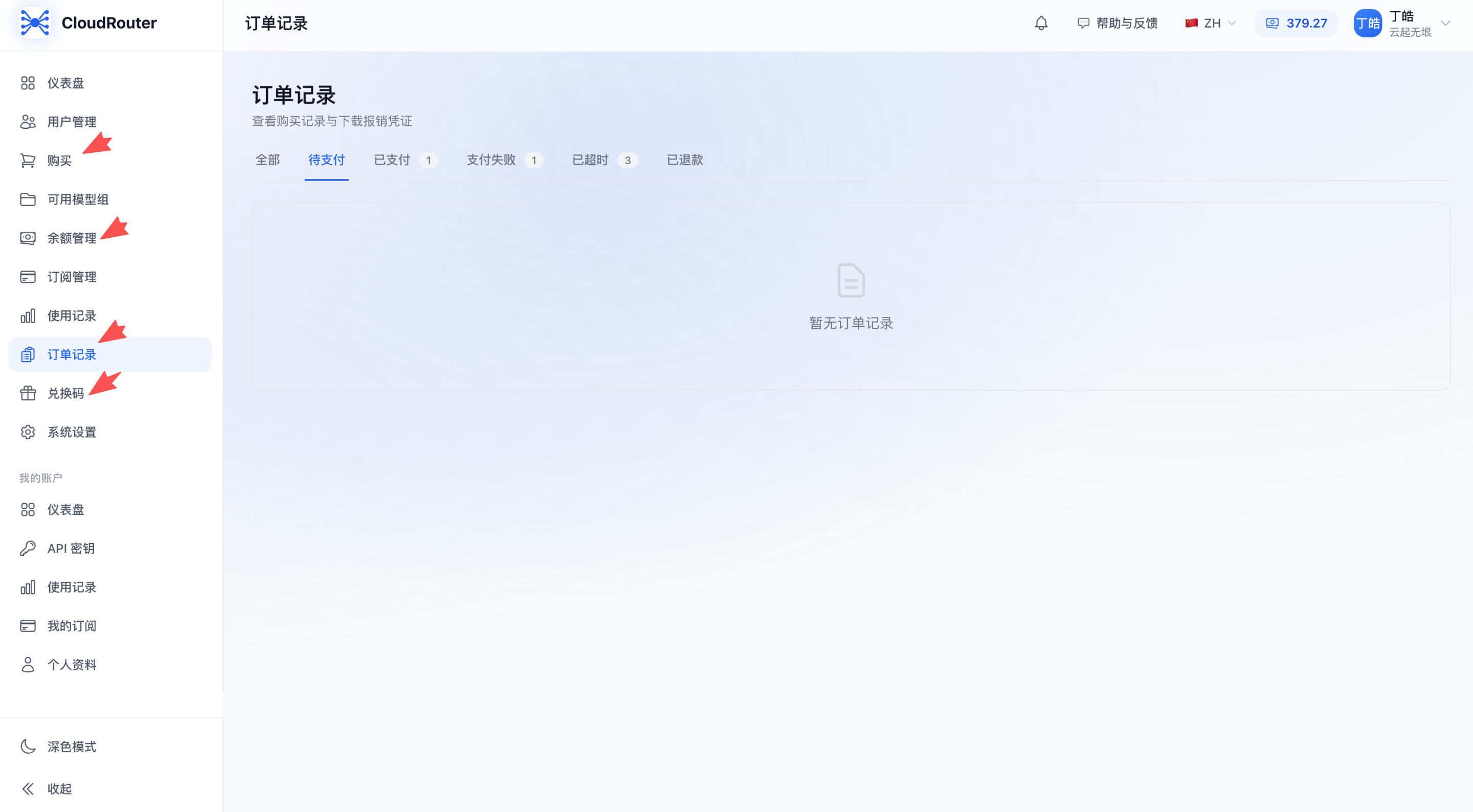
After logging in to the console, you will see three recharge-related entries in the left navigation bar:
| Menu item | Purpose |
|---|---|
| Purchase | Select a plan and pay online |
| Balance Management | View current organization balance, allocate and reclaim balance, view balance transactions |
| Redemption Code | Enter a redemption code to top up the organization balance pool |
| Order Records | View historical recharge orders and download receipts |
You can also jump directly to the purchase page via the "Recharge" button in the upper-right corner of the "Balance Management" page.
Method 1: Online Recharge (Purchase)
Applicable when purchasing credits instantly via Alipay, WeChat, or Stripe. After successful payment, the credits automatically enter the organization balance pool.
Steps
Step 1: Go to the purchase page
Enter the purchase page through any of the following entries:
- Left navigation bar → Purchase
- Left navigation bar → Balance Management → click the "Recharge" button in the upper-right corner
Step 2: Select a plan
The purchase page displays all available recharge plans configured by the system admin, presented in tabs by type:
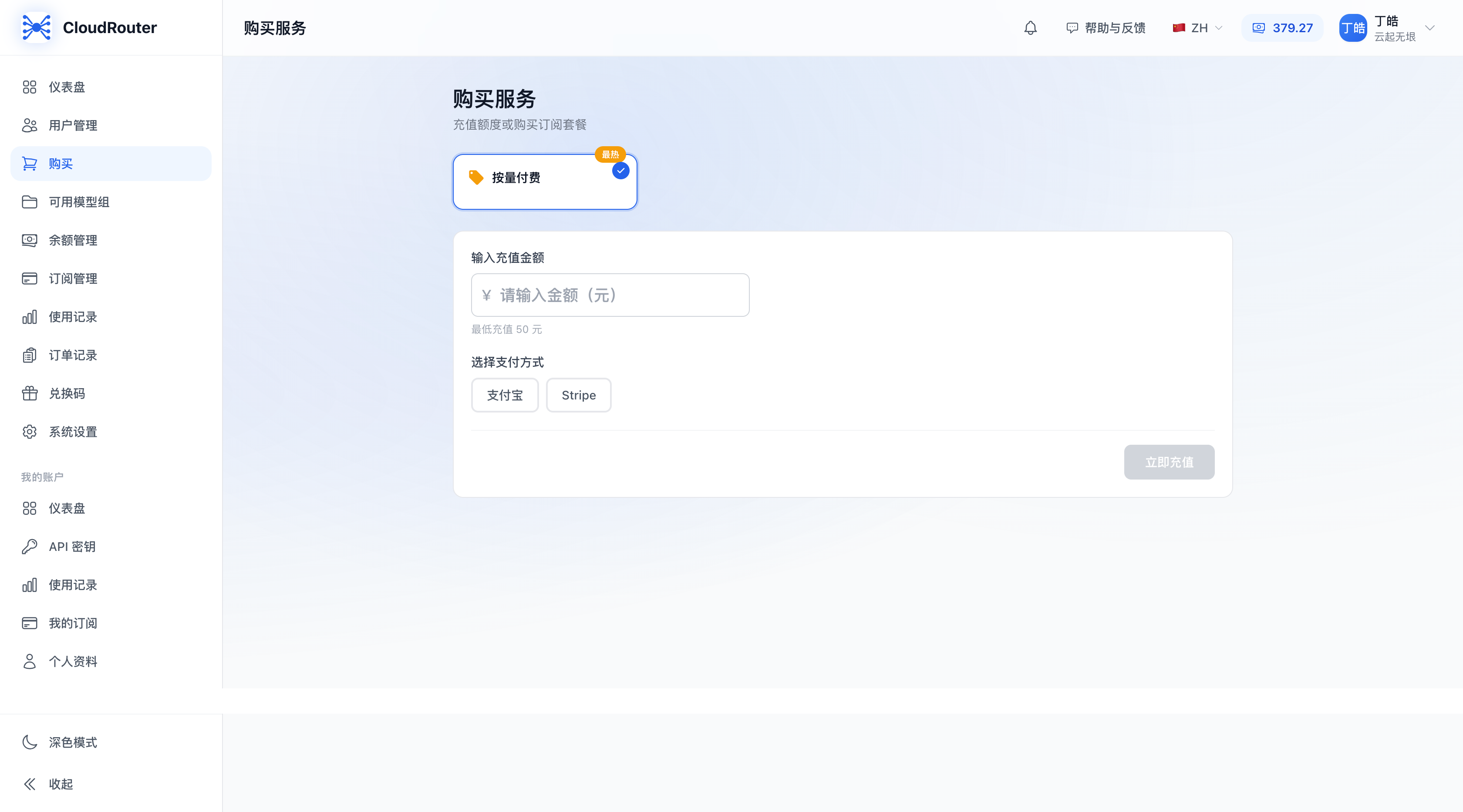
- Click a plan card to select it; the selected plan is highlighted and shows a checkmark icon
- Each card displays: plan name, price, quota (credits), validity period, and limited-time offer (if any)
- If the plan is a "custom amount" type, an amount input box appears at the bottom of the page after selection, where you must manually enter the recharge amount (minimum 50 CNY)
Step 3: Select a payment method
After selecting a plan, the payment channels enabled by the system admin are displayed at the bottom of the page:
| Payment channel | Description |
|---|---|
| Alipay | Scan the QR code and complete payment with the Alipay app |
| WeChat Pay | Scan the QR code and complete payment with WeChat |
| Stripe | Redirect to the Stripe-hosted page, supporting credit cards and other international payment methods |
An option is shown only when the system admin has enabled the corresponding channel. If the page shows "No payment channel available," please contact the system admin.
Step 4: Click "Pay Now"
Click the "Pay Now" button in the lower-right corner of the page, and the system will:
- Alipay / WeChat Pay: pop up a QR code dialog; please scan and complete payment with the corresponding app within 5 minutes
- Stripe: pop up a waiting dialog and open the Stripe payment page in a new window; return to gahorouter after completion
Step 5: Wait for payment success
After payment is complete:
- The page automatically detects the payment status and pops up a "Payment successful! Balance credited" message
- The message box displays the latest current organization balance
- You can click "Close" to return, or click "Continue Purchase" to initiate another recharge
The QR code is valid for 5 minutes. If payment is not completed in time, you will need to re-initiate the order.
Business Rules
- Credits from online recharge enter the organization balance pool and are managed centrally by the tenant admin
- The custom amount is a minimum of 50 CNY and a maximum of 100,000 CNY
- An order is automatically marked as timed out if payment is not completed within 30 minutes. Timed-out orders cannot be paid further and require a new order
- Refunds are processed by the system admin in the backend; after a successful refund, the amount is deducted from the corresponding purchased balance
Method 2: Redemption Code
Applicable when you have obtained a redemption code from a system admin (for example, event rewards, offline purchases, gifts, etc.), completing the recharge by entering the code.
Steps
Step 1: Go to the redemption code page
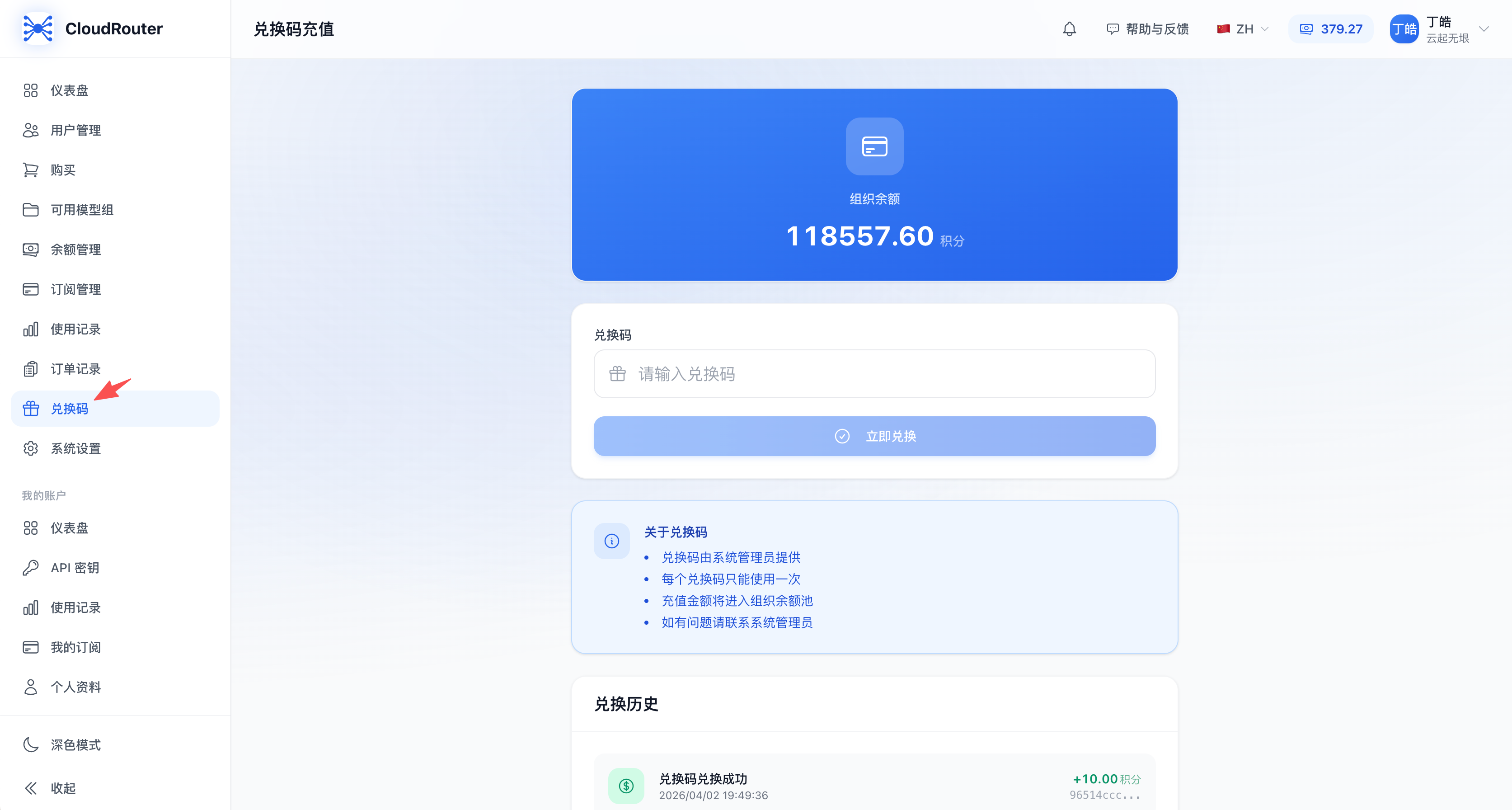
Step 2: Enter the redemption code
- The card at the top of the page displays the current organization balance
- Paste or enter the complete redemption code in the "Redemption Code" input box
- Click the "Redeem Now" button
Step 3: View the redemption result
- Redemption successful: a green prompt card pops up showing "Redemption successful!", the recharge amount for this transaction, and the new balance. The organization balance card is also refreshed accordingly.
- Redemption failed: a red prompt card pops up showing the specific reason (see "Common Errors" below).
Business Rules
- Each redemption code can only be used once and is voided immediately after a successful redemption
- After a successful redemption, the quota goes directly into the current tenant's organization balance pool, managed centrally by you
- Successful redemption records are shown in the "Redemption History" list at the bottom of the same page
Common Errors
| Error message | Cause | Solution |
|---|---|---|
| Invalid redemption code | The code does not exist, or the type is incorrect (e.g., you entered a personal balance redemption code) | Confirm that the code obtained from the system admin is of the "tenant balance" type |
| Redemption code already used | The code has already been redeemed by someone else or by you previously | Contact the system admin to confirm or request a new code |
Viewing Recharge Records
Balance Transactions
Go to Left navigation bar → Balance Management to see the complete organization balance change history:
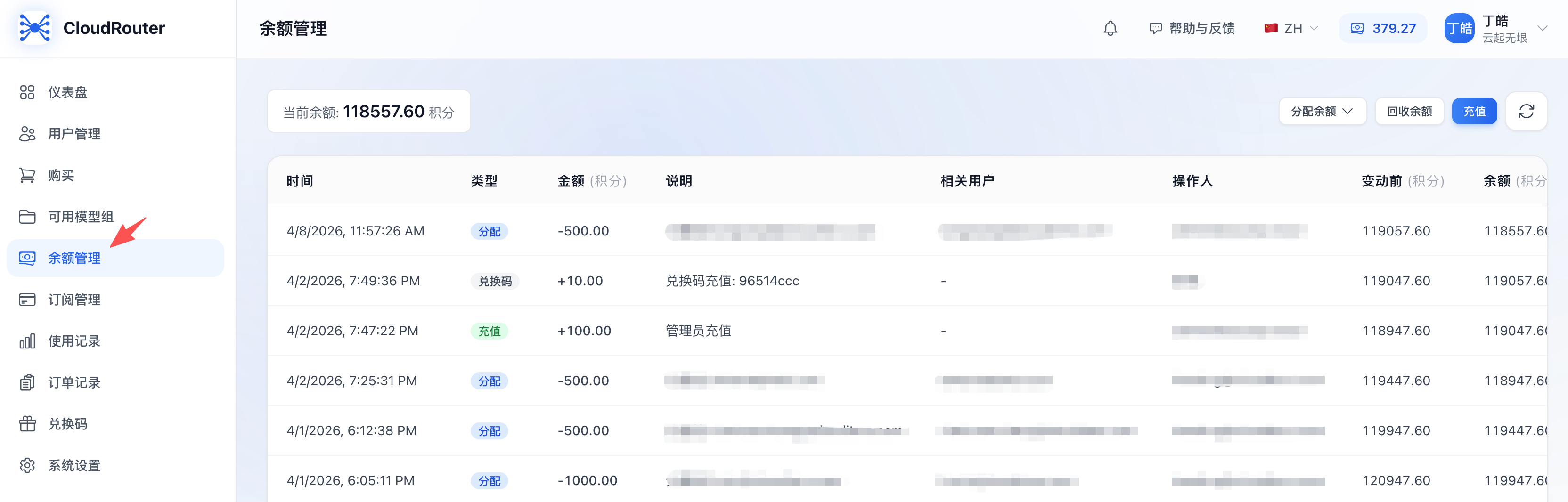
Type descriptions in the transaction table:
| Type | Description |
|---|---|
| Purchase | Credits topped up via online payment on the "Purchase" page |
| Redemption Code | Credits topped up via redemption on the "Redemption Code" page |
| Recharge | Credits recharged directly for you by the system admin |
| Allocation | Deduction for allocating the organization balance pool to tenant members |
| Reclaim | Increase from reclaiming credits from tenant members back to the organization balance pool |
| Consumption | Deduction from members calling models |
| Refund | Deduction from refund operations |
| Promo Code | Credits topped up via a promo code |
Order Records
Go to Left navigation bar → Order Records to see the list of historical recharge orders.
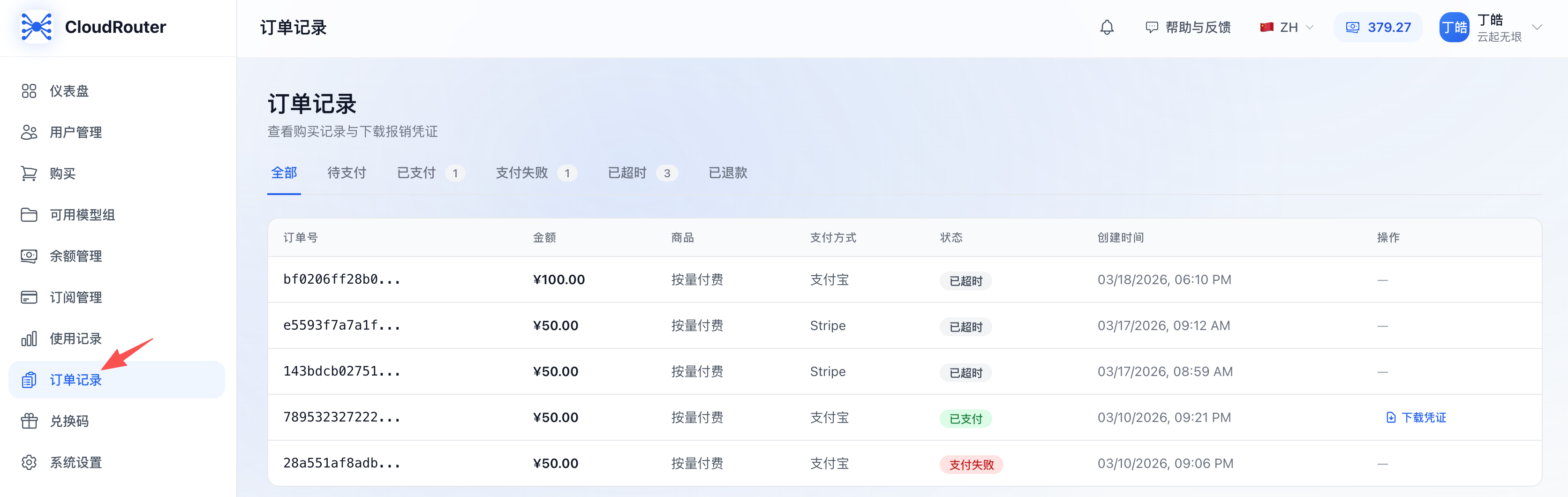
For paid orders, you can click "Download Receipt" to obtain a recharge receipt for reimbursement.
Managing the Organization Balance
After a successful recharge, the credits enter the organization balance pool. As a tenant admin, you can further:
| Action | Entry | Description |
|---|---|---|
| Single allocation | Balance Management → Allocate Balance → Single Allocation | Allocate a specified quota to a member |
| Batch allocation | Balance Management → Allocate Balance → Batch Allocation | Allocate the same quota to multiple members at once |
| Reclaim balance | Balance Management → Reclaim Balance | Reclaim members' unused quota back to the organization balance pool |
Allocation and reclaim operations are also recorded in the balance transactions for subsequent auditing.
FAQ
Q1: What should I do if the balance is not credited after a successful online recharge?
A: Please troubleshoot in the following order:
- Refresh the page and check the Balance Management page again after waiting 1-2 minutes
- Go to "Order Records" to check whether the order status is "Paid"
- If the order remains in "Pending Payment" for a long time, the payment callback may not have arrived; please contact the system admin for assistance
- If the order status is "Payment Failed" or "Timed Out," please place a new order
Q2: After clicking the "Recharge" button, it shows "No purchasable plans"?
A: This means the system admin has not yet configured available recharge plans. Please contact the system admin to create plans under "Product Management" in the backend.
Q3: The page shows "No payment channel available"?
A: This means the system admin has not yet enabled any payment channel. Please contact the system admin to configure and enable Alipay, WeChat, or Stripe under "Payment Management → Payment Channels" in the backend.
Q4: Why does the redemption code I entered show as "invalid"?
A: Possible causes:
- The redemption code is misspelled —— please copy and paste the complete code, paying attention to case
- The redemption code has been deleted —— please contact the system admin to reissue it
Q5: Can a redemption code be used multiple times?
A: No. Each redemption code can only be used once and is voided immediately after a successful redemption.
Q6: What is the minimum amount I can recharge with a custom amount?
A: The minimum amount for the online recharge "custom amount" plan is 50 CNY.
Q7: What should I do if the QR code expires?
A: The QR code is valid for 5 minutes. After it expires, please click "Pay Now" or "Re-initiate Payment" again to generate a new QR code. If it has already expired and remains unpaid, the old order will automatically change to "Timed Out" status, and you will not be charged again.
Q8: Can I get a refund after recharging?
A: For now, refund operations are initiated by the system admin in the backend, and tenant admins cannot refund on their own. If you need a refund, please contact the system admin and provide the order number.
Q9: Can the recharged credits be transferred to members under the tenant?
A: Yes. Credits in the organization balance pool can be allocated to members via "Balance Management → Allocate Balance." When members call models, the cost is also deducted directly from the organization balance pool (depending on the admin's allocation policy).
Q10: Can regular members see the recharge entry?
A: No. Menus such as Purchase, Redemption Code, and Order Records are visible only to the tenant admin role (tenant_admin). Regular members will not see these entries after logging in, nor can they directly call recharge-related APIs.
Notes
- Online recharge and redemption codes are two independent recharge methods; credits from both enter the same organization balance pool
- Orders automatically time out after 30 minutes, so please complete payment as soon as possible
- Recharged credits are managed centrally by the tenant admin; please plan your allocation strategy reasonably to avoid members overusing or hoarding
- Please keep your redemption codes safe to prevent them from being redeemed by others due to leaks
- All recharge records are retained in the balance transactions and order records for auditing and reimbursement
- For large recharges or financial reconciliation, it is recommended to download receipts from "Order Records" for record-keeping
Contact Us
If you encounter any problems during use, please contact us promptly.