

Concurrency Settings
| Applicable Role | Last Updated |
|---|---|
| Tenant Administrator | 2026-06-01 |
Overview
The concurrency limit determines how many parallel requests a single user can send to the model at the same time. It is a key parameter for controlling usage and ensuring service stability. Concurrency in gahorouter is divided into two layers:
- Tenant concurrency cap: Within an entire tenant, the concurrency of any individual user cannot exceed this value. This cap is set and adjusted uniformly by the gahorouter system administrator.
- User concurrency: Within the range of the tenant cap, the tenant administrator assigns a concurrency value to each user under the tenant individually.
This guide covers two common scenarios:
- Raising the tenant concurrency cap — how a tenant administrator contacts gahorouter to request a quota adjustment
- Assigning user concurrency — how a tenant administrator adjusts the concurrency for users within the tenant
Prerequisites
- You are the Tenant Administrator of a tenant
- You have successfully logged in to the gahorouter console
Glossary
| Term | Meaning |
|---|---|
| Tenant concurrency cap | The maximum concurrency that any single user within a tenant is allowed to reach |
| User concurrency | The maximum number of parallel requests a specific user is currently allowed |
Scenario 1: Raising the Tenant Concurrency Cap (Contact Us for a Quota Adjustment)
Description
The tenant concurrency cap determines the maximum concurrency you can set for any single user under your tenant. For example, if the tenant cap is 10, you cannot assign any user a concurrency value greater than 10.
For security and resource management reasons, tenant administrators cannot modify the tenant concurrency cap themselves and must contact gahorouter to request a quota adjustment.
When You Need a Quota Adjustment
You are advised to request an increase to the tenant concurrency cap in any of the following situations:
- The concurrency you want to assign to a user exceeds the current tenant cap, but it is genuinely required by your business
- Multiple users within the tenant frequently report that their requests are being rate-limited, affecting business
- A new business is about to be onboarded, and a significant increase in concurrency is expected
How to Check the Current Tenant Cap
The current version of the console does not directly display the tenant concurrency cap value, but you can infer it indirectly in the following way:
- Go to the User Management page
- Click the Edit button on any user row
- Below the "Concurrency" field, if you see a hint such as "Cap 10, set by system administrator," the number shown is the current tenant cap
If no cap hint is displayed, it means your tenant has not yet had a specific cap configured, or you need to contact the administrator to confirm.
Steps
- Organize your quota adjustment request and prepare the following information:
- Tenant name
- The current tenant cap (if known)
- The target value you want to adjust to
- A brief business background (e.g., "new customer, expecting 50 parallel calls per second")
- Contact gahorouter through any of the following channels:
- Submit a ticket / contact your designated sales representative
- Send an email to the official gahorouter customer service mailbox
- Reach out via the contact methods published on the official website
- Wait for the result: After verifying the request, gahorouter staff will adjust the concurrency cap for your tenant in the backend.
- Once the adjustment takes effect, you can assign users a higher concurrency in "User Management."
Business Rules
- When the administrator lowers the tenant cap, the concurrency of all users in the tenant that exceed the new cap will be automatically lowered to the new cap in sync, with no manual adjustment required on your part
- Raising the tenant cap does not affect the concurrency of existing users; you need to reassign it individually in "User Management"
Notes
- Before submitting a request, please confirm that a concurrency bottleneck actually exists for your business, to avoid over-requesting
- A quota adjustment is a one-time operation; each adjustment requires a separate request
Scenario 2: Adjusting Concurrency for Users Within the Tenant
Description
Within the range allowed by the tenant concurrency cap, the tenant administrator can assign concurrency to each user under the tenant individually, in order to balance resource usage among different users.
Entry Point
Steps
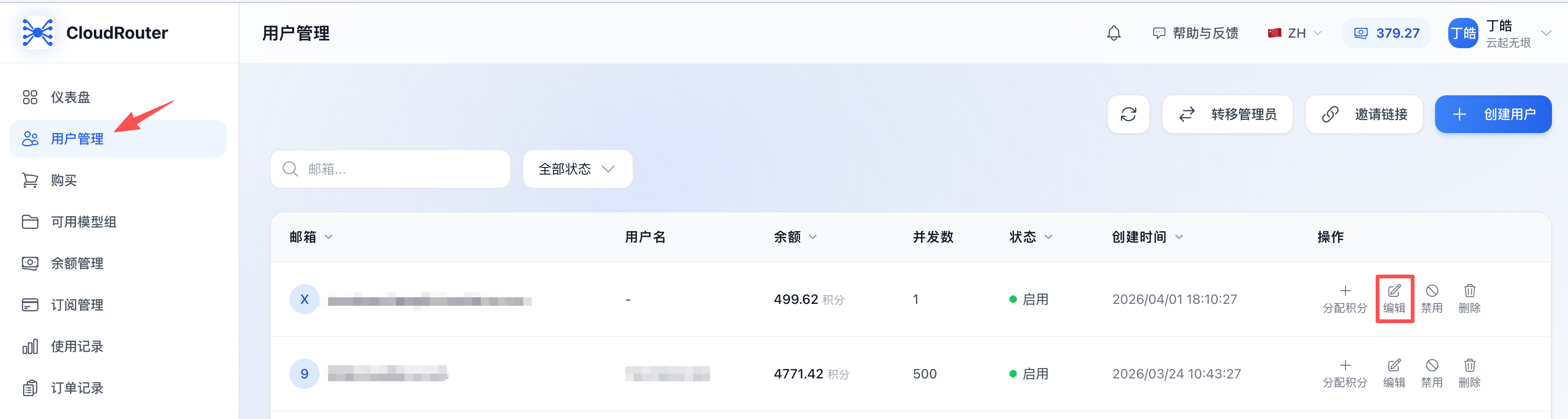
- Go to the User Management page, which displays all users under the tenant. The end of each row shows the user's current concurrency.
- On the row of the target user, click the Edit button.
- The "Edit User" dialog pops up, containing three fields: Email, Username, and Concurrency.
- In the "Concurrency" input box, enter the new concurrency value (must be ≥ 1 and ≤ the tenant cap). A hint is displayed below the field: Cap {number}, set by system administrator, where the number is the concurrency cap of your tenant.
- Click the Save button.
- After saving successfully, the user's concurrency in the list will immediately refresh to the new value.
Field Descriptions
| Field | Required | Description | Example |
|---|---|---|---|
| Yes | The user's login account; generally not recommended to modify | user@example.com | |
| Username | No | The user's nickname, for easier identification | Zhang San |
| Concurrency | Yes | The maximum number of parallel requests allowed for this user | 5 |
Business Rules
- Concurrency must be greater than 0
- Concurrency cannot exceed the tenant cap. If it does, an error hint "Concurrency cannot exceed the tenant cap X" will pop up when saving
- Changes to concurrency take effect immediately; the next request will follow the new value
- New users who join the tenant via an invitation link have a default concurrency of 1, which the administrator must adjust manually
Common Operational Scenarios
- New user onboarding: First add the user to the tenant via an invitation link or by creating a user → then go to "User Management" to edit the user's concurrency
- User business growth: Directly edit the user in "User Management" and increase the concurrency (still must not exceed the tenant cap)
- User business contraction: Lower the concurrency to free up more capacity for other users
FAQ
Q1: Why can't I see an editable "Concurrency Cap" field?
A: The tenant concurrency cap is a platform-level configuration that only the gahorouter system administrator can modify. The "Concurrency" field that tenant administrators see in the console is per individual user, not the tenant cap. To adjust the tenant cap, please refer to "Scenario 1" to contact us.
Q2: I set a concurrency of 20 for a user, but it says it exceeds the tenant cap?
A: This means the current cap of your tenant is less than 20. You have two options:
- Change the user's concurrency to within the cap
- Contact gahorouter to request raising the tenant cap above 20 (refer to "Scenario 1")
Q3: The system administrator lowered the tenant cap—what happens to my users?
A: The concurrency of all users that previously exceeded the new cap will be automatically lowered to the new cap. For example, if the tenant cap drops from 10 to 5, a user previously set to 8 will be automatically set to 5, with no manual action required from you.
Q4: What is the default concurrency for a newly created user?
A: New users created or invited to join by a tenant administrator have a default concurrency of 1. To adjust it, please edit the user in "User Management."
Q5: Do users need to log in again for concurrency changes to take effect?
A: No. Changes to concurrency take effect immediately; the next API request will follow the new concurrency value.
Q6: Can users modify their own concurrency?
A: No. Regular users do not have permission to modify any concurrency configuration; only the tenant administrator can adjust it in "User Management."
Notes
- The higher the concurrency, the greater the instantaneous resource usage. Please allocate it reasonably based on actual business needs to avoid waste
- It is recommended to assign higher concurrency to core business users and lower concurrency to test or auxiliary accounts
- If your tenant has a large number of users, it is recommended to first review the concurrency needs across the entire tenant, then request an appropriate tenant cap from gahorouter all at once
Contact Us
If you encounter any issues during use, please contact us promptly.