

Create and Invite Tenant Members
Overview
| Applicable Role |
|---|
| Tenant Administrator |
gahorouter uses a tenant-based management model. A tenant administrator can add members to the team in two ways: manual creation or an invitation link. Once new members join, they share the tenant's balance pool and model access permissions, without needing to register a tenant separately.
Prerequisites
- You have registered with gahorouter and hold the tenant administrator role
- If you are a system administrator, you must first enter the detail page of the corresponding tenant
Entry Point
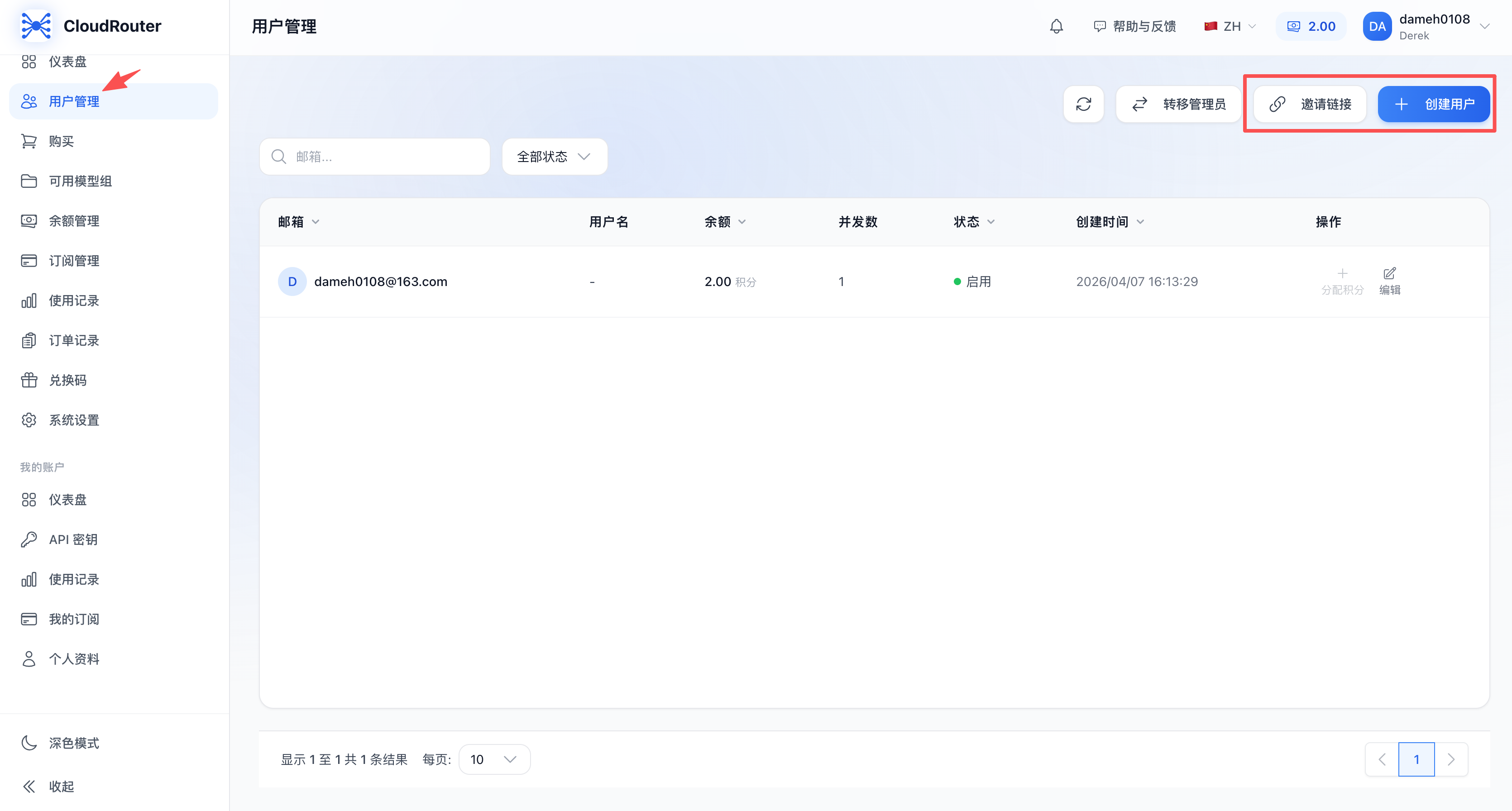
Method 1: Manually Create a Member
This applies when you already know the member's information (email, etc.) and need to create an account for them directly.
Steps
- On the User Management page, click the "Create User" button in the top-right corner
- In the create dialog that pops up, fill in the following information
Field Descriptions
| Field | Required | Description | Example |
|---|---|---|---|
| Yes | The member's login email, must be globally unique | zhangsan@company.com | |
| Password | Yes | The member's login password | We recommend including uppercase and lowercase letters, digits, and special characters |
| Username | Yes | The member's display name | Zhang San |
- After confirming that the information is correct, click "Confirm" to submit
- After successful creation, the user list refreshes automatically, and the new member appears in the list
Business Rules
- The email must be unique across the entire system and cannot duplicate an existing account
- A newly created member is automatically assigned to the current tenant with the role of regular user
- Once a member is created successfully, they can log in to the gahorouter console using their email and password
- A new member can only use the API normally after the tenant administrator allocates credits to them
Method 2: Add Members via an Invitation Link
This applies when you want to send a link to team members so they can join on their own.
Steps
- On the User Management page, click the "Invite" button in the top-right corner
- The system opens the invitation link management panel
- Click "Generate Invitation Link", and the system creates a new invitation link
- Click the "Copy" button next to the link to copy it to the clipboard
- Send the link to your team members (via WeChat, email, DingTalk, or any other method)
- After team members open the link, they fill in their personal information as prompted to join your tenant
Managing Invitation Links
In the invitation link panel, you can:
| Action | Description |
|---|---|
| Generate link | Create a new invitation link |
| Copy link | Copy the link to the clipboard so it can be sent to others |
| Disable link | Disable an invitation link; once disabled, the link can no longer be used |
| Delete link | Permanently delete an invitation link |
Business Rules
- Members who join via an invitation link do not need to register a tenant separately; they directly become regular users of the current tenant
- You can generate multiple invitation links at the same time
- If a link is no longer needed, we recommend disabling or deleting it promptly to prevent unauthorized people from joining
What Can Members Do After Joining?
After joining the tenant, members log in to the gahorouter console with their email and password, and can:
| Action | Description |
|---|---|
| Create API Key | Generate their own API key in the console |
| Call models | Use the model groups enabled for the tenant, consuming the tenant's balance pool |
| View usage | View their personal usage records and statistics |
| View their tenant | View the organization they belong to and administrator information on the profile page |
FAQ
Q1: When members join via an invitation link, do they still need to register a tenant?
A: No. Members who join via an invitation link only need to fill in their personal information; they are automatically added to your tenant and do not need to register separately.
Q2: Can one person belong to multiple tenants at the same time?
A: One email can correspond to only one account, that is, one tenant.
Q3: What should I do if I get the message "Email already registered" when manually creating a member?
A: This means the email has already been used to register an account in gahorouter, or you can contact the system administrator for assistance.
Q4: After a member joins, are the balance and model permissions shared?
A: Yes. The administrator can separately allocate credit quotas to members, and members can use all model groups enabled for the tenant.
Notes
- We recommend regularly checking the status of invitation links and disabling links that are no longer needed
- When creating a member, make sure to share the login password with them through a secure channel
Contact Us
If you encounter any issues during use, please contact us promptly.