

Request an Invoice
Overview
| Item | Details |
|---|---|
| Applicable role | Tenant administrators who have completed a top-up |
| Last updated | 2026-06-01 |
gahorouter handles invoice issuance centrally through a Feishu form. You need to download the purchase voucher from "Order Records" on the gahorouter platform, then submit the voucher together with your invoice details via the Feishu form. Customer support will issue the invoice and send it back to you within 3-5 business days.
Invoice requests submitted before Thursday are processed and completed on the Thursday and Friday of the same week. Requests submitted on Thursday or later are deferred to the Thursday and Friday of the following week.
⚠️ Important: When submitting the form, you must upload the purchase voucher downloaded from the platform. Requests without a voucher cannot be invoiced.
Overall Process
- Step 1: Log in to the gahorouter console, go to "Order Records," and download the purchase voucher for a paid order.
- Step 2: Open the Feishu form, fill in the invoice header and delivery details, and upload the voucher you just downloaded.
- Step 3: Customer support processes the request within 3-5 business days and sends back an electronic invoice.
Prerequisites
- You have completed at least one gahorouter top-up, and the order status is Paid.
- You have prepared the invoice header information to be issued (company name, tax ID, etc.).
- You have an email address that can receive the invoice.
Orders that are expired, payment-failed, cancelled, or refunded cannot be invoiced.
Step 1: Download the Purchase Voucher
Steps
- Log in to the gahorouter console (https://console.gahorouter.com).
- Click Order Records in the left navigation bar.
- A status filter tab appears at the top of the order list page. Switch to the "Paid" tab to quickly locate invoiceable orders.
- Find the order row you want to invoice and click the "Download Voucher" button on the far right.
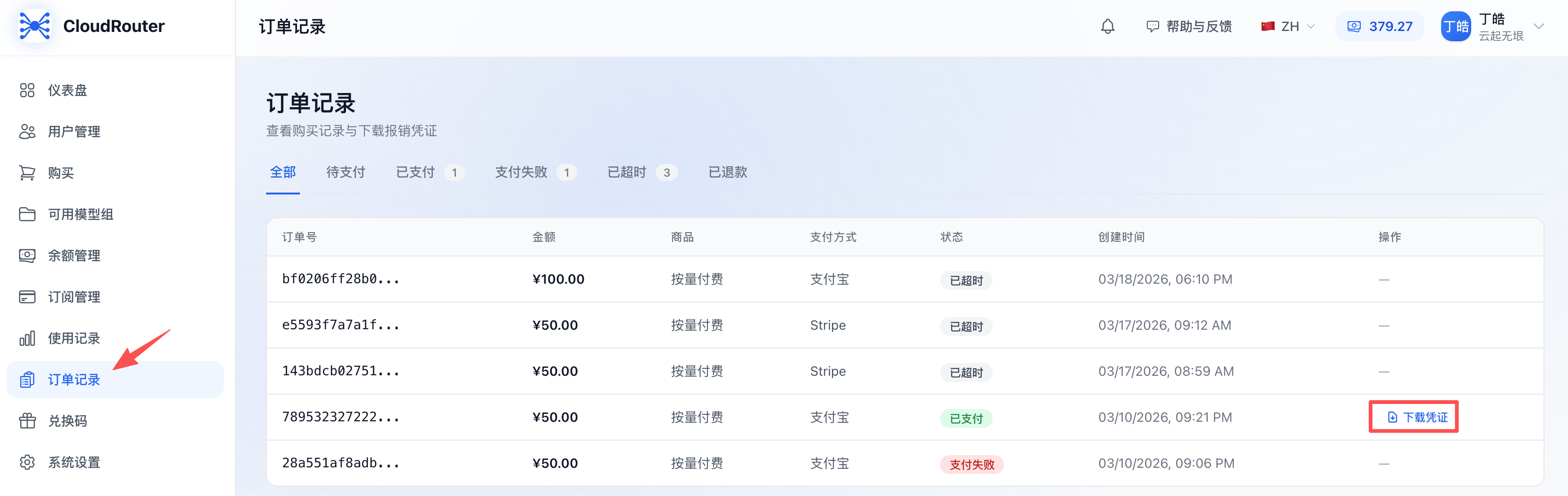
- After the button shows a loading animation, the browser automatically downloads a purchase voucher file. Please save it safely to your local machine.
Alternative Entry: Order Details Page
You can also:
- Click any paid order row to open the Order Details dialog.
- Click the blue "Download Reimbursement Voucher" button at the bottom of the dialog.
Both methods download the same voucher file.
Notes
- Only orders in the Paid status display the "Download Voucher" button; other statuses show ---.
- If an order is in the "Refunded" or "Partially Refunded" status, the corresponding amount cannot be invoiced again.
- When multiple orders need invoicing, download the voucher for each one in turn.
Step 2: Fill in the Feishu Form
Form URL
[Invoice Request Form Link]
Open this link in your browser to access it directly (no Feishu login required).
Steps
- Open the Feishu form link.
- Follow the prompts in the form to fill in the invoice header information (company name, tax ID, etc.).
- Fill in the delivery details (email / mailing address, etc.).
- At the "Upload Purchase Voucher" field, click to upload and select the voucher file downloaded in Step 1.
- After verifying that all information is correct, click the "Submit" button at the bottom of the form.
- After successful submission, a confirmation message appears on the page.
Notes
- Be sure to upload the purchase voucher. Requests without a voucher cannot be invoiced.
- If you want to combine invoices for multiple orders this time, upload the vouchers for all orders together (the form usually supports multi-file uploads).
- Please carefully verify the invoice header information. The header is not easy to change after submission; an incorrect invoice must be voided and reissued.
Step 3: Wait for Invoice Issuance
Processing Time
- Under normal circumstances, customer support issues the invoice within 3-5 business days. Invoice requests submitted before Thursday are processed and completed on the Thursday and Friday of the same week. Requests submitted on Thursday or later are deferred to the Thursday and Friday of the following week.
- There may be slight delays during busy periods such as holidays, month-end, or quarter-end.
- The invoice issued is usually an electronic invoice (PDF format).
How to Receive the Invoice
- Electronic invoice: It is sent to the email address you provided in the form.
If You Don't Receive It Within 5 Business Days
Please contact customer support through the following channel:
- Email: support@gahorouter.com
When reaching out, please provide: the order number, the submission time of the request, and the receiving email address you entered.
FAQ
Q1: Can I combine multiple orders into a single invoice?
A: Yes. Please fill in the total amount in the form and upload the vouchers for all orders to be combined. We recommend noting in the remarks: "Combined invoice, order numbers: XXX, YYY, ZZZ."
Q2: If I haven't downloaded the voucher, can I request an invoice using only the order number?
A: No. The purchase voucher is the required basis for invoicing and must be downloaded from the platform and uploaded to the form. Requests without a voucher cannot be processed.
Q3: The "Download Voucher" button doesn't respond when clicked. What should I do?
A: Possible causes:
- The order status is not "Paid" --- please switch to the "Paid" tab to check.
- The browser blocked the download --- please check your browser's download settings, or try again with a different browser.
- Network issue --- the page displays a "Voucher generation failed, please try again later" prompt; try again later.
If it keeps failing, please contact customer support for assistance.
Q4: What if I entered the wrong invoice header?
A:
- Before the invoice is issued: Please submit a new form and note in the remarks: "Overrides the previous request; this submission takes precedence."
- After the invoice is issued: The incorrect invoice must first be voided or credited (red-letter), then reissued. Please contact customer support to handle this, which may take an additional 3-5 business days.
Q5: Can you issue a special invoice (VAT special invoice)?
A: Please clearly indicate the "special invoice" requirement in the form and provide complete general-taxpayer qualification information (tax ID, bank, account number, address, phone). Customer support will decide whether it can be issued based on policy and qualification review.
Q6: Can a refunded order still be invoiced?
A: No. An order that has been refunded no longer generates actual revenue and cannot be invoiced. For partially refunded orders, only the unrefunded portion can be invoiced; please explain the situation in the form.
Q7: Can the invoice content (item details) be customized?
A: The invoice content is issued according to the actual items purchased (such as "Information Technology Service Fee," "Top-up Service," etc.) and customization is usually not supported. If you have special requirements, please note them in the form remarks, and customer support will evaluate them according to compliance requirements.
Q8: Are the downloaded voucher and the invoice the same thing?
A: No. The voucher is a proof of purchase generated by the gahorouter platform, equivalent to a receipt, used as supporting material when you apply for an invoice. The formal VAT invoice is issued by the finance team and sent to you by email.
Notes
- Always download the voucher from the platform before submitting the form. This is the key prerequisite for successful invoicing.
- The processing time is 3-5 business days. Please allow enough time to apply and avoid concentrated submissions at month-end or quarter-end that may cause delays. Invoice requests submitted before Thursday are processed and completed on the Thursday and Friday of the same week. Requests submitted on Thursday or later are deferred to the Thursday and Friday of the following week.
- Please ensure the invoice header exactly matches your business license information to avoid rejection due to mismatched details.
- After submitting the form, keep an eye on the receiving email (including the spam folder) to avoid missing the invoice email.
- Refunded, expired, or failed orders cannot be invoiced; only "Paid" orders are eligible.
- If you need to modify or supplement information, please contact customer support and provide the order number.
Contact Us
If you encounter any issues during use, please contact us promptly.