

Tenant Region Switching and Model Group Availability
Overview
| Item | Description |
|---|---|
| Applicable role | Tenant administrator (tenant_admin) |
| Last updated | 2026-06-01 |
gahorouter treats Region as a tenant-level attribute that controls the scope of model services visible and usable by all members under the tenant. During registration, you select a region for the tenant (Mainland China / Overseas), and the system then automatically filters the available model groups based on that region:
- Mainland China tenant: Only displays model groups tagged as "Mainland China" (domestic models such as DeepSeek, Tongyi Qianwen, GLM, Kimi, Doubao, Hunyuan, iFlytek Spark, etc.)
- Overseas tenant: Displays all model groups —— including both "Overseas" model groups (Claude, GPT-4o, Gemini, etc.) and "Mainland China" model groups
Once the region is set, only the tenant administrator can modify it on the "Tenant Settings" page. Region changes take effect immediately, instantly affecting the list of model groups seen by all members under the tenant, the groups that API Keys can bind to, as well as the Dashboard / usage pages.
Core Concept: Region Tag vs. Tenant Region
Understanding the relationship between the two is key to understanding the entire feature:
| Concept | Applies to | Values | Set by |
|---|---|---|---|
| Model group's "Service Region" | Each model group | 🇨🇳 Mainland China / 🌍 Overseas | System administrator in the backend |
| Tenant's "Region" | The entire tenant | 🇨🇳 Mainland China / 🌍 Overseas | Tenant administrator (initially chosen at registration, changeable later) |
Visibility rules:
| Tenant region | Visible model groups (by service region) |
|---|---|
| 🇨🇳 Mainland China | Mainland China only |
| 🌍 Overseas | Mainland China + Overseas = All |
Easy way to remember: Mainland China tenants can only see domestic model groups; Overseas tenants can see all model groups (domestic + overseas). The Overseas region is a "superset", and the domestic region is a "subset".
Prerequisites
- You have registered with gahorouter and are logged in as a tenant administrator
- Region changes affect all members under the tenant; please coordinate with your team before proceeding
- If you have an API Key in use that is bound to a model group that may become unavailable, the system will notify you in advance in the modification dialog
Feature Entry Point
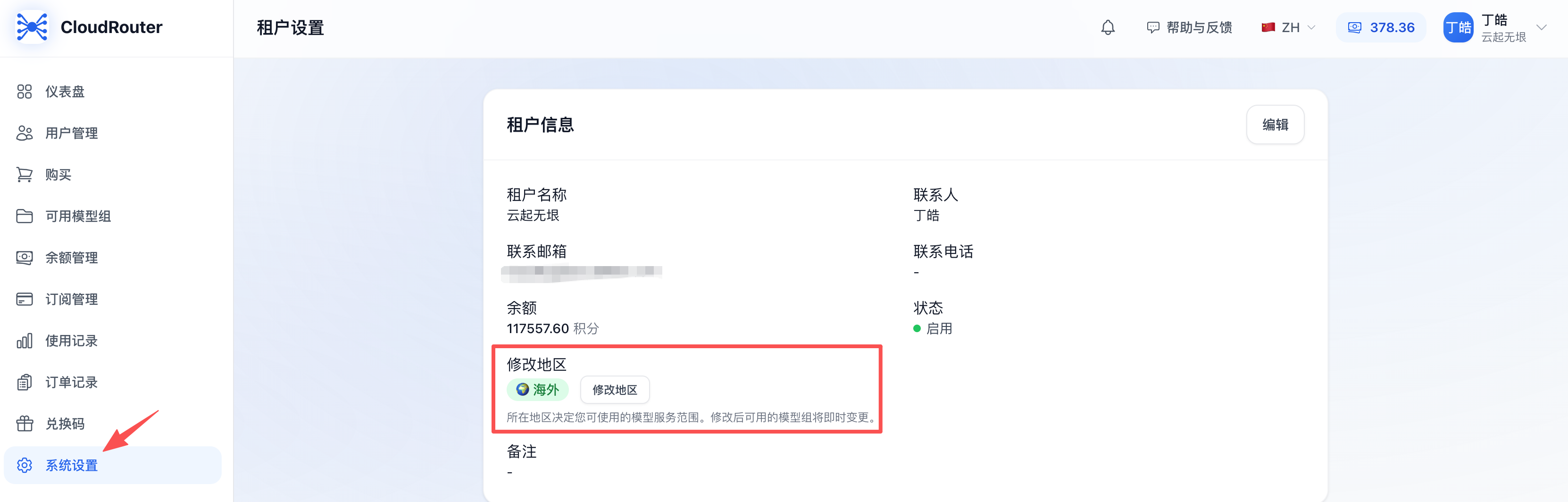
In the "Tenant Information" card, you will see the "Region" field and the "Change Region" button on the right (visible only to tenant administrators).
Viewing the Tenant's Current Region
Go to the Tenant Settings page and find the "Region" field in the "Tenant Information" card. The system displays the current region as a colored badge:
| Badge | Meaning | Color |
|---|---|---|
| 🇨🇳 Mainland China | The current tenant region is Mainland China | Red |
| 🌍 Overseas | The current tenant region is Overseas | Green |
Regular members can also see the "Region" information, but cannot see the "Change Region" button.
Viewing Available Model Groups
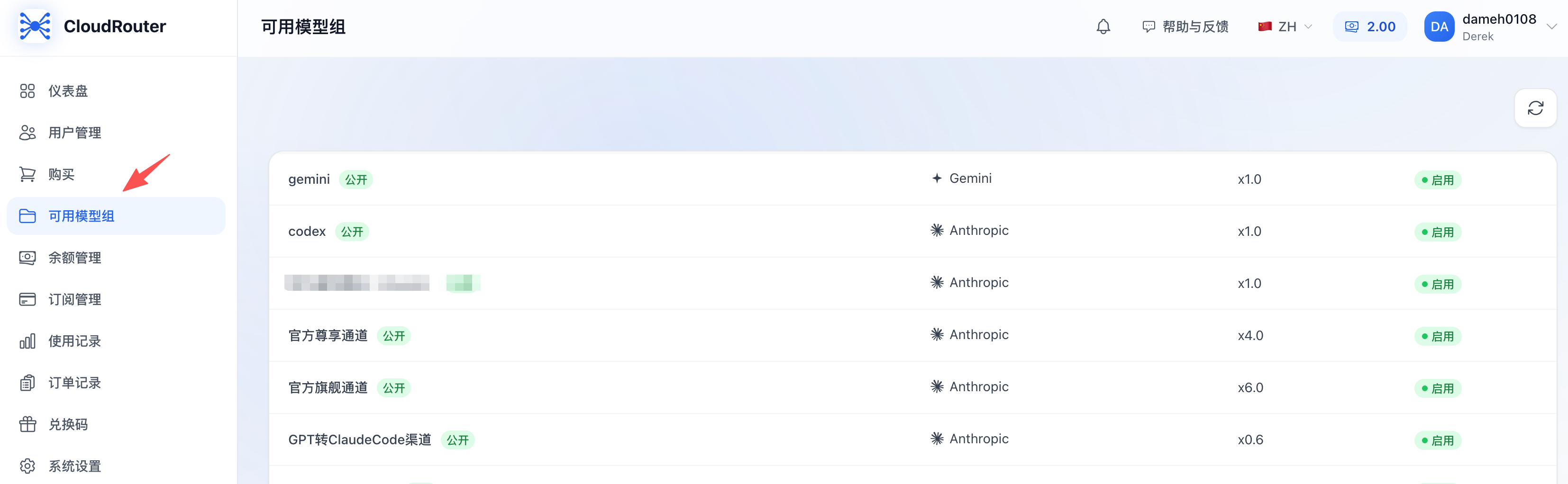
This page displays the list of all actually available model groups under the current tenant, including the following information:
| Column | Description |
|---|---|
| Name | The model group name, e.g. "DeepSeek-V3 Smart Routing" |
| Platform | The provider (such as DeepSeek, Anthropic, OpenAI, etc.) |
| Rate multiplier | Credits are consumed by a multiplier when calling the group |
| Status | Shows the enabled status of the group under the current tenant |
This list is the final result after the system applies multi-layer filtering of "deployment level → region level → tenant level", so what you see is exactly the model groups actually available to members.
Changing the Tenant Region
Steps
Step 1: Go to the Tenant Settings page
Step 2: Click the "Change Region" button
Click "Change Region" to the right of the "Region" field to open the region change dialog.
Step 3: Select the target region
In the "Region" field, choose:
- Mainland China: After switching, only model groups tagged "Mainland China" (domestic models) can be used
- Overseas: After switching, all model groups (domestic + overseas) can be used
Step 4: Review the cross-border data compliance notice
After selecting, the dialog will display a compliance notice explaining the geographic region of data processing and the relevant privacy policy. Please read it carefully and confirm that you are aware of the related responsibilities.
Step 5: Click "Confirm Change"
The system will update the tenant region immediately.
Business Rules
- Only tenant administrators can modify: Regular members cannot see the "Change Region" button, nor can they directly call the modification API
- When the current region is the same as the selected region: The "Confirm Change" button is not clickable
- Changes take effect immediately: Once confirmed, the model group visibility of all members under the tenant is affected immediately, with no need to log in again
- Scope of impact:
- The available model groups page
- The group selector when creating API Keys
- The model group overview on the Dashboard
- The group breakdown in usage statistics
Impact After Switching Regions
Switching from "Overseas" to "Mainland China"
Example scenario: A team originally registered overseas relocates back to China, or needs to meet Mainland China compliance requirements.
| Change | Description |
|---|---|
| Overseas model groups | All become invisible and disappear from the list |
| Domestic model groups | Remain visible |
| API Keys bound to overseas groups | Cleared and pending reassignment |
| Allocated credit balance | Unaffected, the balance remains unchanged |
| Historical usage data | Unaffected, historical data is retained |
| In-progress API calls | Calls already sent complete normally; subsequent calls follow the new region rules |
Switching from "Mainland China" to "Overseas"
Example scenario: A Mainland China tenant needs to use overseas models such as Claude and GPT-4o.
| Change | Description |
|---|---|
| Overseas model groups (🌍 Overseas) | Become visible and appear in the list |
| Domestic model groups (🇨🇳 CN) | Remain visible (Overseas tenants can see everything) |
| Existing API Keys | Unaffected (the originally bound domestic groups are also available to Overseas tenants) |
| Cross-border data responsibility | You must assess and bear the compliance responsibility yourself |
⚠️ After switching to the Overseas region, your data may be transmitted to and processed by third-party model service providers outside Mainland China. Please confirm that this complies with the laws and regulations of your region.
FAQ
Q1: Why can't I see models like Claude / GPT-4o / Gemini?
A: Most likely because your tenant region is set to "Mainland China". Per compliance requirements, Mainland China tenants can use only domestic model groups by default. If you do need to use overseas models, please:
- Go to the Tenant Settings page
- Click "Change Region" next to "Region"
- Select "Overseas" and confirm
Q2: Do members need to log in again after the region is changed?
A: No. Region changes take effect immediately; members can simply refresh the page to see the latest list of model groups.
Q3: Will changing the region affect my balance or recharged credits?
A: No. The region only affects "which model groups are visible and usable" and does not affect any balance, recharge records, usage data, or issued invoices.
Q4: Why can't regular members see the "Change Region" button?
A: A region change affects the entire tenant, so only the tenant administrator has permission to modify it; regular members can only view the current region. This prevents individual members from changing it on their own and affecting the whole team.
Q5: Can old API Keys continue to make calls after switching?
A:
- If the originally bound group is still available under the new region (for example, switching from Mainland China to Overseas, where the original domestic groups remain available): calls can continue normally
- If the originally bound group is unavailable under the new region (for example, switching from Overseas to Mainland China, where the original overseas groups are no longer available): you need to reconfigure the group bound to the API
Q7: What if there are no available model groups under the region I selected?
A: Please contact the system administrator to confirm:
- Whether the system administrator has configured the corresponding model groups for your target region in the backend
- Whether your tenant has been restricted by the administrator from accessing specific groups
Q9: Can different members set different regions?
A: No. The region is a tenant-level attribute; all members under the same tenant share the same region. This is to simplify compliance management and avoid compliance discrepancies between members within the same tenant.
Q11: I'm switching from overseas to domestic. Can I still use the overseas models I already paid for?
A: No. After switching to "Mainland China", all model groups tagged "Overseas" become immediately invisible, regardless of whether they were paid for. The balance is retained but can only be used to call domestic model groups. To continue using overseas models, please switch back to "Overseas".
Q12: The dialog takes a long time to load with no response when switching regions?
A: After switching the region option in the dialog, the system automatically performs a pre-check (checking the affected API Keys), so a slight delay is normal. If there is no response for a long time, please refresh the page and try again; if the problem persists, please contact customer support.
Notes
- A region change is a tenant-wide action: Please coordinate with your team before making the change to avoid confusing members
- Cross-border data responsibility is your own: Choosing "Overseas" means you acknowledge and agree that data may be transmitted abroad; please assess compliance according to the laws and regulations of your region
- Balance and orders are unaffected: A region change only alters visibility and does not affect balance, orders, invoices, or usage data
- Recommended to change during off-peak hours: Avoid switching regions during business peak hours to prevent affecting in-progress calls
- Not sure which to choose? Domestic operations teams / Mainland China users → choose "Mainland China"; global teams / those who need Claude/GPT-4o → choose "Overseas"
Contact Us
If you encounter any issues during use, please contact us promptly.